Activity Log
Automatic.css keeps an activity log of what it does, for example generating your CSS files or activating your license. When something does not work, for example your changes don't show up on the site or your license won't activate, the activity log is the first place to look. It tells you whether Automatic.css ran into an error and what the error was.
Open the activity log
- In the WordPress admin, open Automatic CSS in the menu.
- Click the Activity Log tab.
You need to be an administrator to see it.
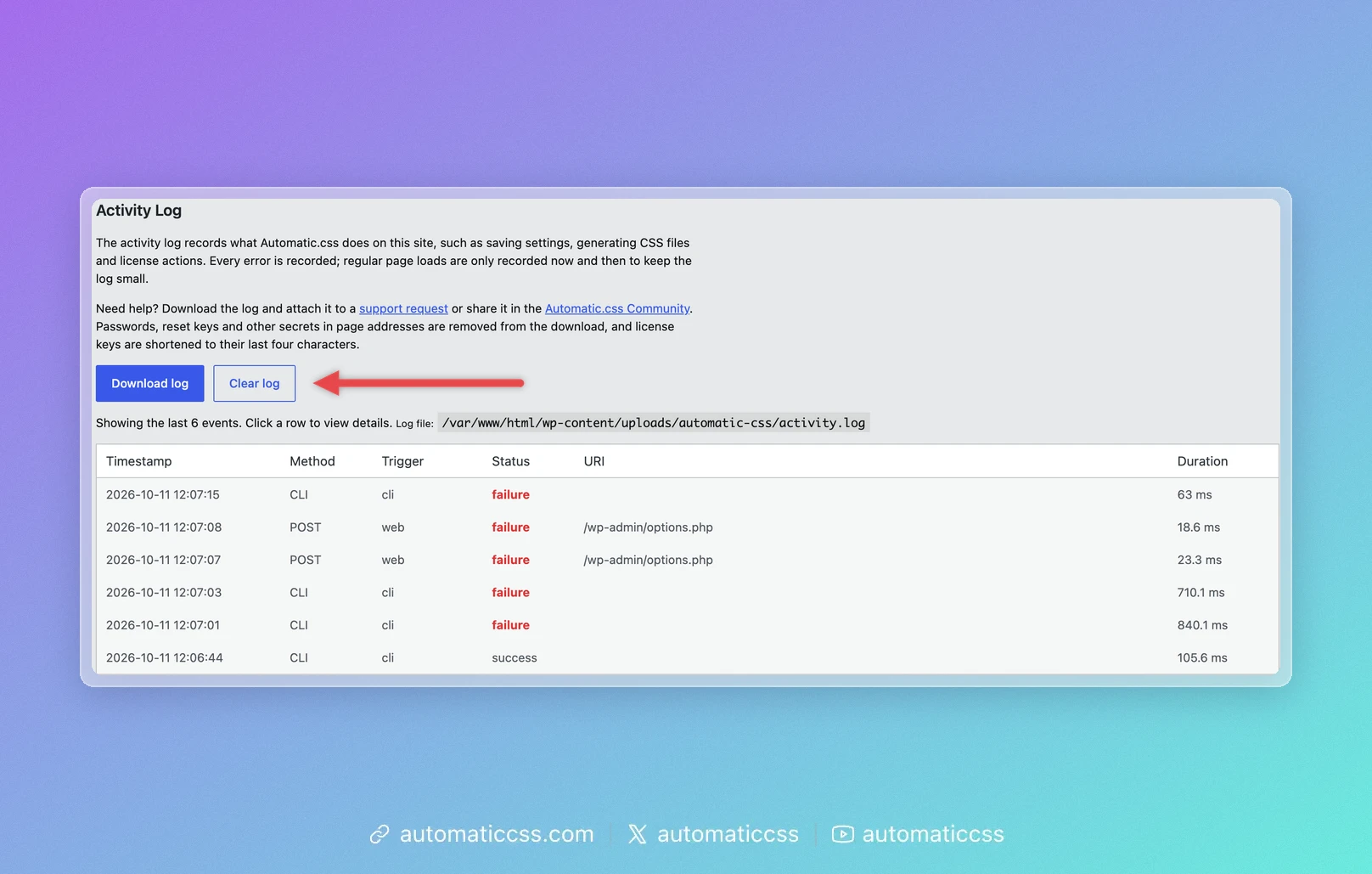
The tab shows the last 50 events, newest first:
| Column | What it means |
|---|---|
| Timestamp | When it happened. |
| Method | The HTTP method of the request, such as GET or POST, or CLI for WP-CLI commands. |
| Trigger | What started it: web for a normal page load, ajax for requests from the dashboard (for example saving), rest for the REST API, cron for scheduled WordPress tasks, cli for WP-CLI. |
| Status | success, or failure in red when something went wrong. |
| URI | The address of the request. |
| Duration | How long Automatic.css took. |
Automatic.css logs every error, but only some of the requests that went fine, so the log stays small and your site stays fast. A short log with few entries is normal and means nothing went wrong.
See what went wrong
Click a row to open its Event Details. For a failed event, look at result:
statussaysfailure.messageunderfailure_messagesdescribes the error, for example which file failed and where.
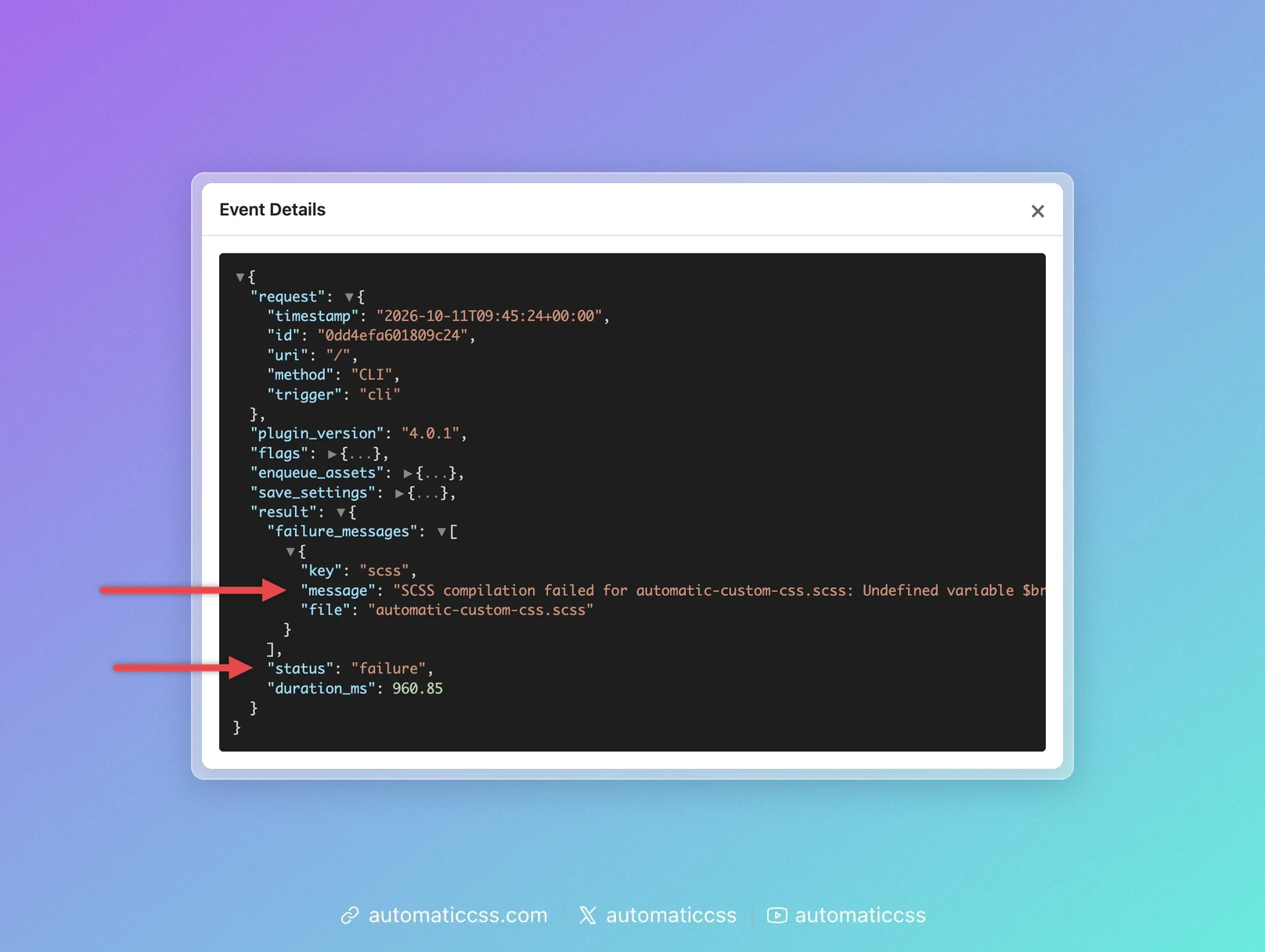
The arrows (▼ and ▶) fold and unfold the sections. Sections such as flags and save_settings contain a lot of technical detail you usually don't need.
In the example above, the Global SCSS uses a variable that doesn't exist ($brand-colour), so the CSS could not be generated. Fix the code in the dashboard, save, and the next event shows success.
License errors 4.0.2+
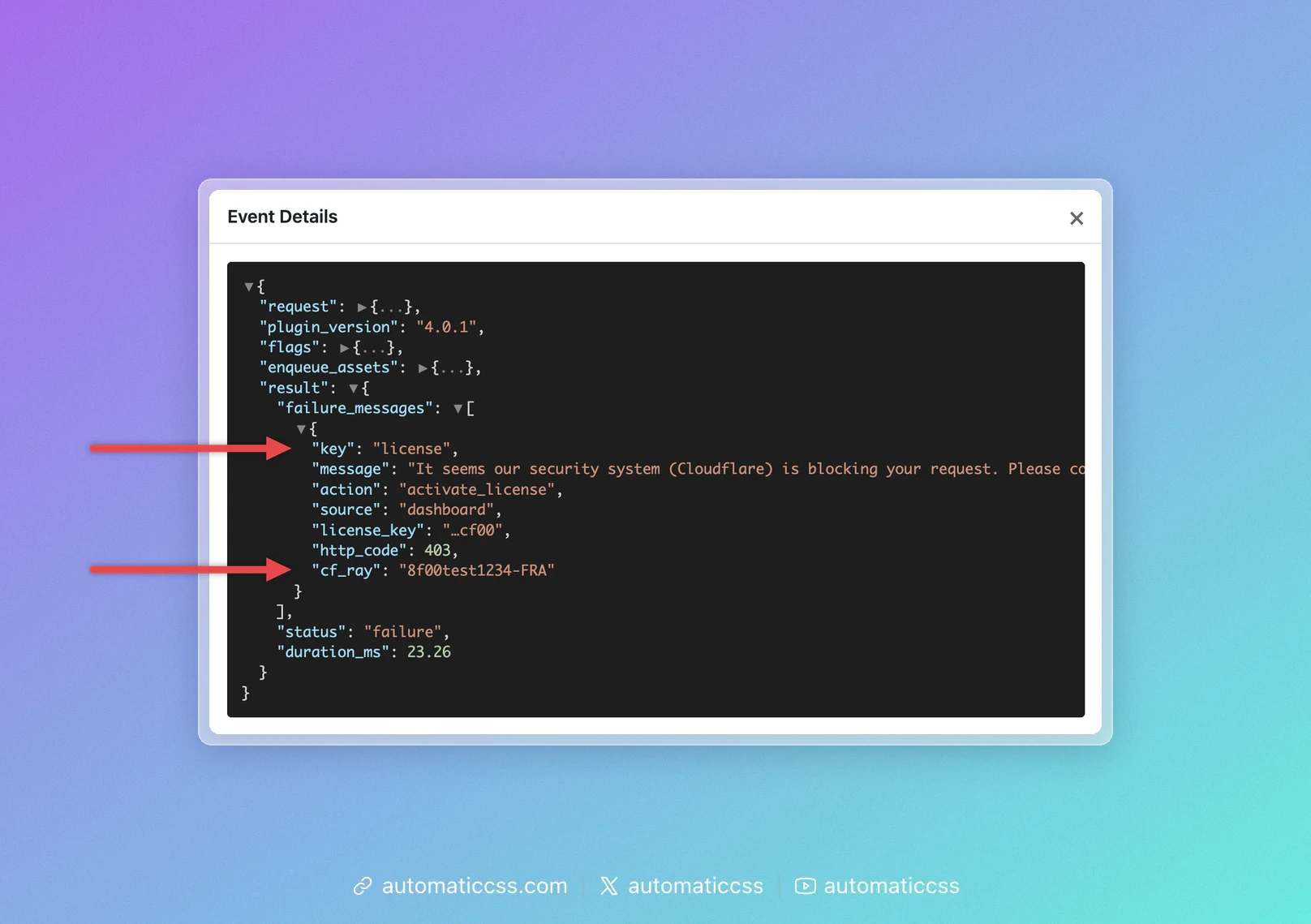
When activating or deactivating your license fails, the event shows "key": "license" under failure_messages. The message is the same one you saw on the License tab. The other fields tell support why it failed:
| Field | What it means |
|---|---|
action | activate_license or deactivate_license. |
source | Where you started it: dashboard (the License tab), cli (WP-CLI), or legacy_release (Automatic.css removing the old Automatic.css 3 license after an upgrade). |
license_key | Only the last four characters of the key, for example …cf00. |
edd_error | The reason the licensing server gave, for example no_activations_left or expired. |
http_code | Shown when the licensing server answered with an error, for example 403. |
cf_ray | Shown when Cloudflare blocked the request. Support needs this Ray ID to find the block. |
transport_error | Shown when your site could not reach the licensing server at all, for example because of a firewall or a timeout. |
Share it to get help 4.0.2+
If you can't solve the error yourself:
- Click Download log on the Activity Log tab. Your browser saves a file named like
acss-activity-log-2026-10-11.log. - Attach the file to a support request, or share it in the Automatic.css Community.
- Add the date and time of the problem and what you did just before it.
Before the file is downloaded, Automatic.css removes passwords, password reset keys, logins, tokens and nonces from page addresses. License keys are shortened to their last four characters. The file still contains technical details about your site, such as page addresses and your Automatic.css settings. If you'd rather not share those in public, send the log through a support request instead of the Community.
Before 4.0.2 there is no Download log button. The file is in wp-content/uploads/automatic-css/activity.log. You can download it with your host's file manager or SFTP.
Clear the log 4.0.2+
Click Clear log and confirm. This empties the log, including older rotated files, and cannot be undone. Clearing helps when you want to reproduce a problem: clear the log, repeat the steps that fail, and then download a log that only contains that attempt.
If the log is empty or missing
- "The activity log is empty." Nothing has been logged yet. That's normal on a site without errors.
- "No activity log file found." The log is created with the first event. If it stays missing, check that the
ENABLE_ACTIVITY_LOGflag is on, for example withwp acss flags list. It is on by default.
Using WP-CLI
You can read and clear the log from the command line as well:
wp acss logs tail
wp acss logs clear
See wp acss logs for all options. wp acss doctor also checks the log for recent errors.