License
Your license key gives the site automatic updates. You manage it on the License tab under Automatic CSS in the WordPress dashboard.
Activate your license
- Copy the key named “–Automatic.css” from your account. Don’t use the bundle key or the key named after your plan.
- Paste it into License Key.
- Click Save & Activate.
The tab shows the button that fits the current state: Save & Activate while the license is not active, Delete & Deactivate once it is. Check for updates now is always there.
When the license is active, the tab names the address it is active for, for example “Automatic.css is active on example.com.”
After a domain change 4.0.2+
A license is activated for one address. When you move a site, for example from staging to the live domain, the license is not active for the new address until you activate it again.
The License tab tells you when this happened:
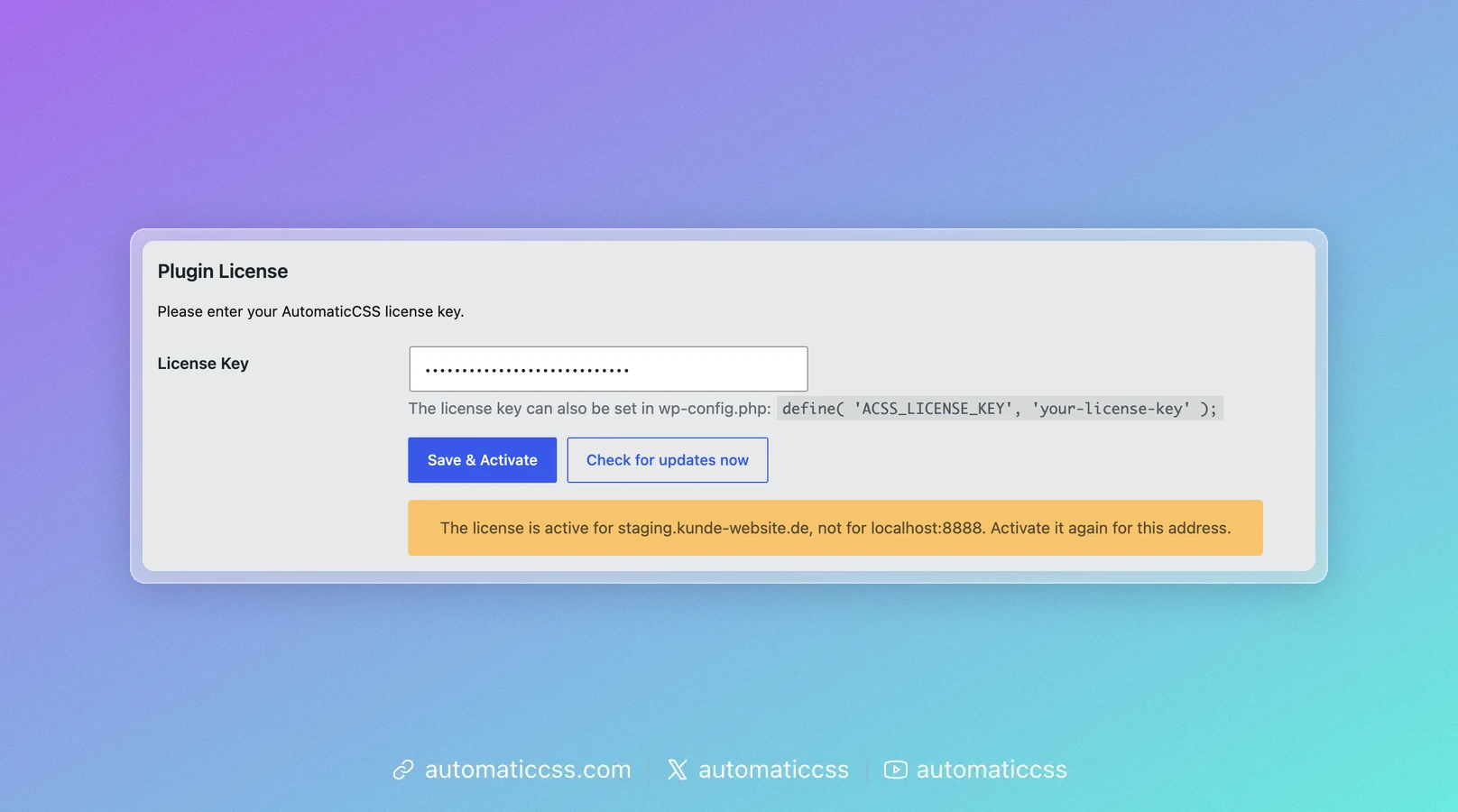
Click Save & Activate to activate the license for the new address. The old address keeps its activation. If you need it elsewhere, remove it in your account.
Set the key in wp-config.php 4.0.2+
If you manage many sites, you can set the key in wp-config.php instead of the dashboard. Add this line above /* That's all, stop editing! */:
define( 'ACSS_LICENSE_KEY', 'your-license-key' );
Automatic.css then:
- uses this key instead of a key saved on the License tab;
- activates it the next time an administrator opens the WordPress dashboard;
- activates it again after you change the key or move the site to another domain;
- deactivates the key it replaced, so that key does not keep using one of your activations.
The License tab shows only the last four characters of the key and no Delete & Deactivate button:
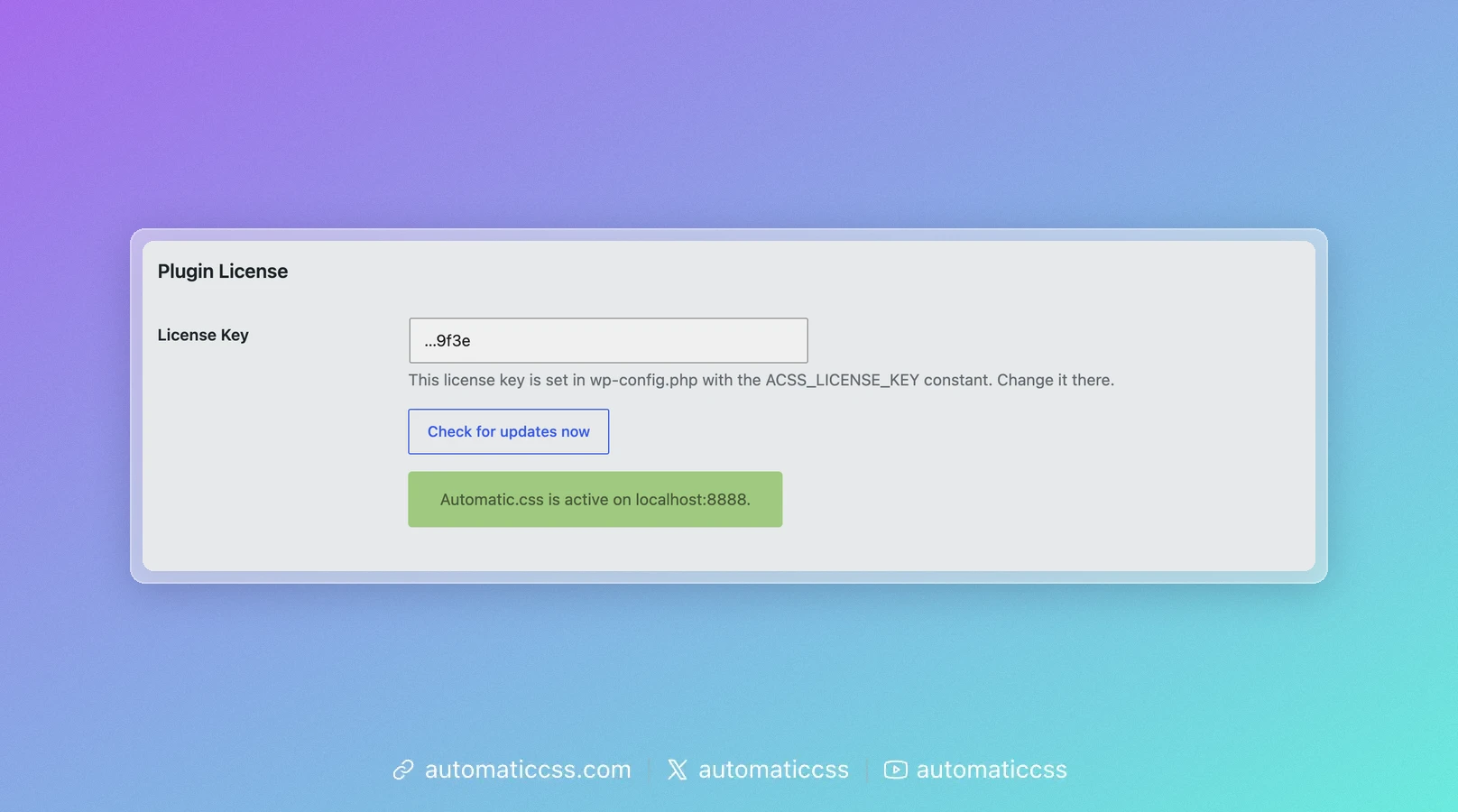
To change the key, edit wp-config.php. To stop using it, remove the line; the License tab then works as before.
If the activation fails, the reason is in the Activity Log. Automatic.css does not retry a key the license server rejected until you change it, and retries after 10 minutes if the license server could not be reached. You can also click Activate to try again.
While the key is set in wp-config.php, wp acss license set and wp acss license deactivate stop with a message instead of changing it. See wp acss license.
Check for updates 4.0.2+
Check for updates now asks the license server for the latest version right away, instead of waiting for WordPress to check. The result appears on the tab:
- Green: Automatic.css is up to date, or a new version is ready to install on the Plugins page.
- Yellow: something needs your attention, for example no license key is saved or the license server did not provide a download for this site.
- Red: the license server could not be reached. A firewall or Cloudflare may be blocking the connection.
Deactivate your license
Click Delete & Deactivate to remove the key from this site and free its activation, for example before you take a site down.